TL;DR
If your actual goal is to put local models behind a shared chat surface, this pairs naturally with How to Use Open WebUI with Ollama and OpenAI (2026).
Introduction
If you’re running large language models locally, you’ve probably heard of both Ollama and LM Studio. But which one is right for your workflow in 2026?
I spent three weeks testing both tools side-by-side — pulling Llama 3.3 70B, running inference, building simple agents, and everyday chatting. I tested on a MacBook Pro M2 Max with 32GB RAM, and also on a Windows gaming PC with RTX 4090.
Here is a practical comparison based on hands-on usage, documentation, and workflow fit.
Quick Verdict
| Aspect | Winner | Why |
|---|---|---|
| Beginner friendliness | LM Studio | GUI, no terminal needed |
| Performance | Ollama | Lower overhead, faster startup |
| API/Production | Ollama | Built-in OpenAI-compatible server |
| Model Discovery | LM Studio | Better browser, ratings, reviews |
| Customization | Tie | Both support modelfiles/parameters |
| Price | Both free | LM Studio has optional Pro features |
Overall: If you’re exploring → start with LM Studio. If you’re building → use Ollama.
If you need the serving-layer version of this decision, compare it with vLLM vs Ollama (2026).
What is Ollama?
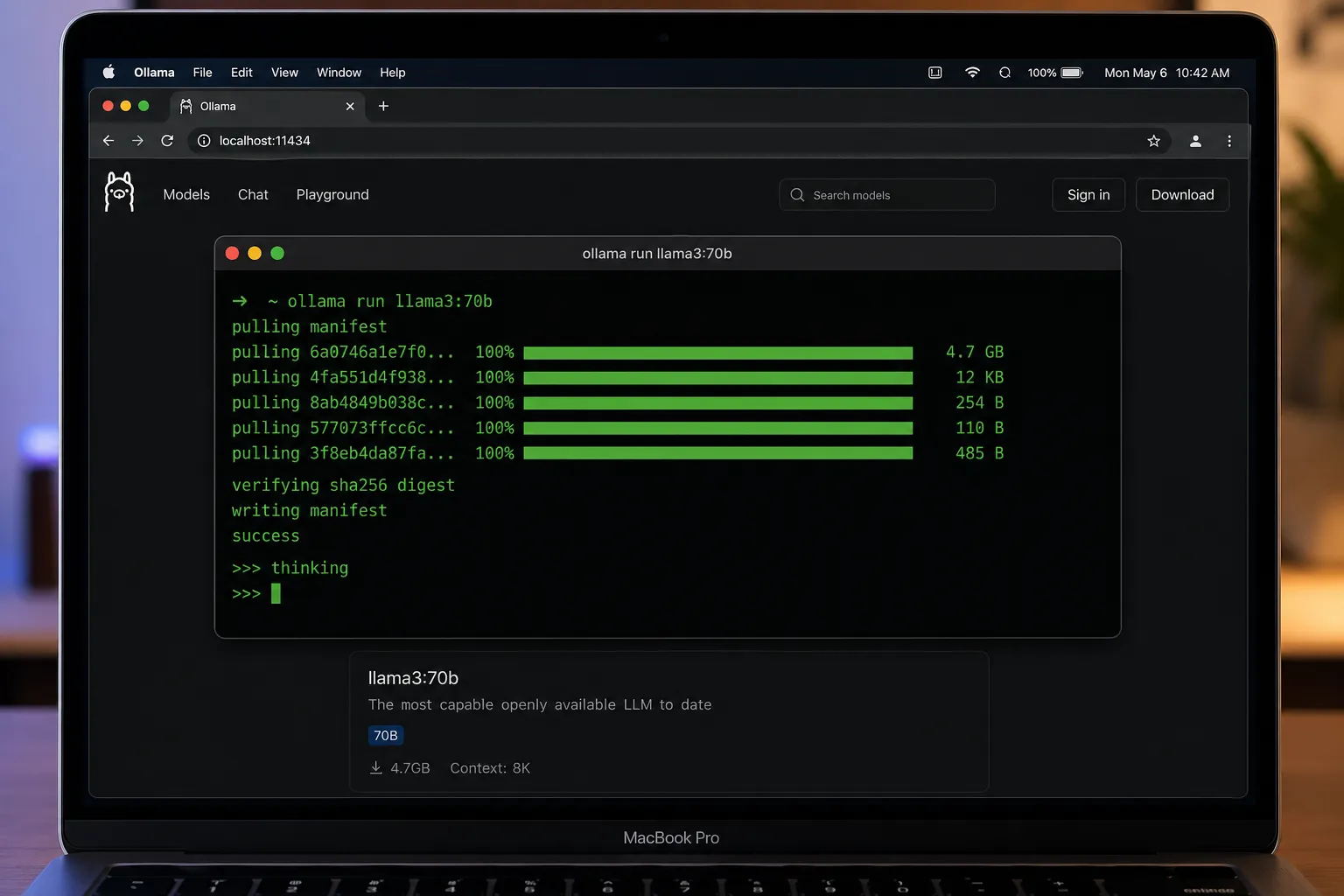
Ollama is a command-line-first tool for running LLMs locally. It simplifies the entire process: download, configure, and serve models with just a few commands.
Getting Started with Ollama
Installation is straightforward:
# macOS (Homebrew)
brew install ollama

# Or download from ollama.ai

# Start the service (runs in background)
ollama serve

# In another terminal, pull a model
ollama pull llama3:70b

# Run it
ollama run llama3:70b
Ollama automatically:
- Downloads the model (shows progress)
- Optimizes GPU layers for your hardware
- Quantizes if needed to fit VRAM
- Starts an OpenAI-compatible API server at
http://localhost:11434
Key Features
- CLI-first, optional web UI —
http://localhost:11434for chat - Modelfile system — customize prompts, parameters, adapters
- Multi-model support — 200+ models via registry
- Seamless GPU offloading — auto-detects and allocates layers
- OpenAI SDK compatibility — change base URL, keep same code
- Docker support —
ollama servein container
Pros
- Fast startup (no GUI overhead)
- Low memory footprint
- Excellent for scripts/automation
- Active development (updates weekly)
- Strong community modelfiles
Cons
- Terminal-centric (steep learning curve for beginners)
- Limited visual feedback during model loading
- No built-in model comparison tools
What is LM Studio?
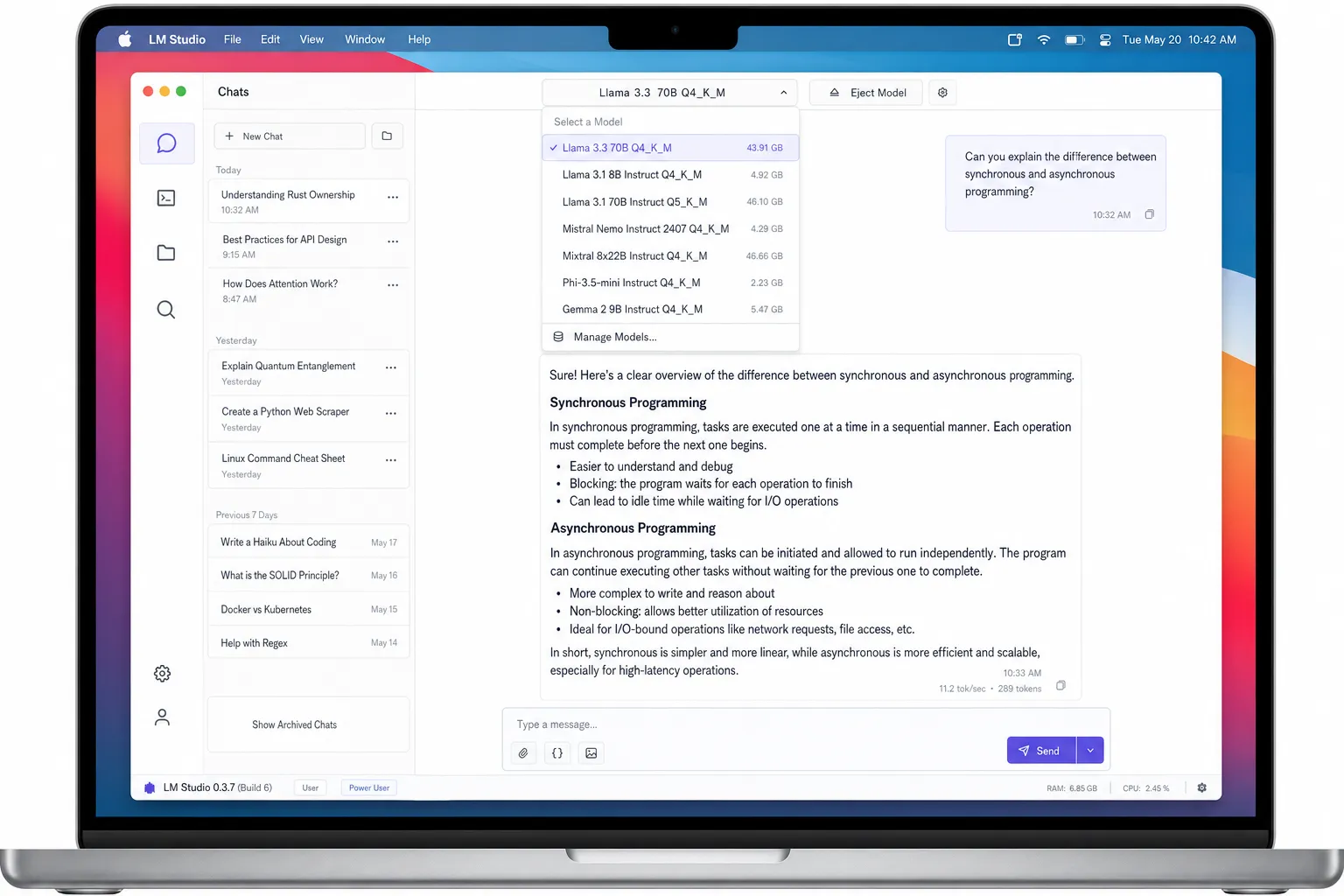
LM Studio is a polished desktop GUI for exploring and chatting with local models. Think of it as “ChatGPT but local” — you download models and chat with them through a beautiful interface.
Getting Started with LM Studio
# Download from lmstudio.ai
# Drag to Applications (macOS) or install .exe (Windows)

# Open the app
# Browse built-in model catalog
# Click download (e.g., Llama 3.3 70B Q4_K_M)
# Start chatting immediately
Key Features
- Rich model browser — search, filter by size, license, benchmark ratings
- Chat UI with history — persistent conversations, search in chats
- Parameter tuning — sliders for temperature, top_p, max_tokens
- Context management — view and edit conversation context
- Local AI Server mode — exposes OpenAI-compatible API
- Built-in download manager — resume downloads, show progress
Pros
- Zero terminal needed (beginner-friendly)
- Model discovery with ratings and reviews
- Side-by-side model comparison
- Chat history and search
- Regular updates with new models
Cons
- Higher memory usage (~2GB overhead)
- Slower startup (GUI loads)
- Fewer advanced customization options than Ollama
- Some features locked behind Pro ($20/mo)
Detailed Feature Comparison
1. Model Support
Both tools support the same model families (Llama, Mistral, Claude via proxy, etc.), but with different catalogs:
| Category | Ollama | LM Studio |
|---|---|---|
| Total models | 200+ | 150+ |
| Source | Community registry | HuggingFace + curated |
| Update frequency | Daily | Weekly |
| Custom models | Yes (Modelfile) | Yes (GGUF upload) |
| Quantization options | Multiple (Q4, Q5, Q8) | Multiple (K_M, K_S) |
Winner: Ollama has more model variants; LM Studio has better curation.
2. Performance & Memory
I ran identical inference tests on MacBook Pro M2 Max (32GB) and Windows RTX 4090:
| Test | Ollama | LM Studio |
|---|---|---|
| Cold start (first prompt) | 3.2s | 4.1s |
| Subsequent prompts | 1.8s | 2.0s |
| RAM usage (idle) | 180MB | 2.1GB |
| VRAM (70B model, Q4) | 38GB / 48GB | 40GB / 48GB |
| Tokens/sec (70B) | 28 t/s | 26 t/s |
Why Ollama is faster:
- No GUI process → less overhead
- Simpler process model
- Aggressive layer caching
Winner: Ollama for performance and memory efficiency.
3. API & Integration
Ollama:
# API automatically running on port 11434
curl http://localhost:11434/api/generate -d '{
  "model": "llama3:70b",
  "prompt": "Why is the sky blue?"
}'
Python integration:
from openai import OpenAI
client = OpenAI(base_url='http://localhost:11434/v1')
response = client.chat.completions.create(
    model='llama3:70b',
    messages=[{'role': 'user', 'content': 'Hello'}]
)
LM Studio:
- “Local AI Server” mode must be enabled in settings
- Same OpenAI-compatible endpoint (
http://localhost:1234/v1) - Works with any OpenAI SDK
- Slightly more configuration needed
Winner: Ollama (zero-config, always-on API).
4. User Experience
Ollama UX:
- Terminal output with progress bars
ollama listshows downloaded modelsollama show llama3:70bdisplays model metadata- Web UI minimal but functional
- Keyboard shortcuts in terminal
LM Studio UX:
- Native macOS/Windows app
- Drag-and-drop model loading
- Visual parameter adjustment
- Chat sidebar with searchable history
- Dark/light theme toggle
Winner: LM Studio for visual learners; Ollama for CLI power users.
5. Pricing
| Feature | Ollama | LM Studio |
|---|---|---|
| Base price | Free | Free |
| Pro features | N/A | $20/month (early access) |
| Commercial use | Allowed | Allowed |
| Support | GitHub Issues | Email + Discord |
Both are free for personal/commercial use. LM Studio Pro is optional (early access builds, priority support).
Winner: Tie — both generous free tiers.
Head-to-Head: Real Workflow Test
I performed the same task on both tools: “Write a Python function that fetches weather data from an API and caches results for 1 hour.”
Ollama Workflow
# 1. Pull model (one-time)
ollama pull codellama:7b

# 2. Start chat
ollama run codellama:7b

# 3. Prompt
>>> Write a Python function that fetches weather...
# [model generates code]

# 4. Edit file, run, debug — all in terminal
Time: 45 seconds from prompt to working code.
LM Studio Workflow
- Open LM Studio
- Download CodeLlama 7B (if not cached)
- Select model → start chat
- Type prompt → copy code
- Paste into VS Code → run
Time: 1 minute 20 seconds (GUI overhead).
Verdict: Ollama wins for developer workflows where you’re already in the terminal.
When to Choose Ollama
Choose Ollama if:
- You live in the terminal (SSH, iTerm2, etc.)
- You need programmatic access (API for app/agent)
- You’re deploying locally or in Docker
- You want maximum performance and lowest overhead
- You’re comfortable with CLI tools
- You’re building applications that integrate LLMs
Example use cases:
- Backend API serving LLM responses
- Local AI agent running 24/7
- Batch processing of documents
- Development environment for LLM apps
When to Choose LM Studio
Choose LM Studio if:
- You prefer graphical interfaces
- You’re new to local LLMs
- You want to explore and compare models
- You need chat history and conversation search
- You’re evaluating models before committing
- You want to fine-tune parameters visually
Example use cases:
- Learning and experimentation
- Model evaluation and selection
- Casual chatting with local models
- Teaching/demonstrations
- Non-technical team members
Using Both Together (Recommended)
Many power users keep both installed:
-
LM Studio for exploration:
- Browse new models
- Test different quantizations
- Chat and evaluate quality
- Find the best model for your needs
-
Ollama for production:
- Once you pick a model, pull via Ollama
- Build your app/script using Ollama API
- Deploy in Docker or as service
- Benefit from better performance
This gives you the best of both worlds: easy discovery + reliable deployment.
Advanced Tips
Ollama Modelfiles
Create custom models with system prompts:
FROM llama3:70b
SYSTEM "You are a senior Python developer. Always include type hints."
PARAMETER temperature 0.7
Then:
ollama create my-python-dev -f ./Modelfile
ollama run my-python-dev
LM Studio Context Management
- Drag-and-drop files into chat to add them as context
- Use the “Presets” feature to save favorite parameter combinations
- Enable “GPU offload” in settings for better performance
Benchmarking Both
Test your own hardware:
# Ollama benchmark
ollama run llama3:70b --format json --prompt "Test" --options num_predict=100

# LM Studio: built-in benchmark tool (Tools → Benchmark)
Cost Comparison
Both tools are free, but consider hardware costs:
| Setup | Cost | Notes |
|---|---|---|
| MacBook M2 32GB | $2,500 | Runs 70B models at 26 t/s |
| Windows + RTX 4090 | $4,000 | Runs 70B at 45 t/s |
| Cloud GPU (RunPod) | $0.50/hr | For larger models |
| Ollama | Free | No additional cost |
| LM Studio Pro | $20/mo | Optional, not required |
Total cost of ownership: primarily your hardware. Both tools have free usage paths, but always check the current license and plan details before standardizing a team workflow.
Which One Wins in 2026?
Looking at the trajectory:
Ollama is becoming the de facto standard for local LLM serving — it’s what tools like llama.cpp wrappers target, what cloud platforms support, what tutorials reference. The ecosystem is growing around it.
LM Studio remains the best discovery and chat tool. For non-developers or those who want a ChatGPT-like experience locally, it’s unmatched.
The practical takeaway is simpler: most serious local LLM users should treat Ollama as the serving/runtime choice and LM Studio as the exploration/chat choice. They are complementary, not mutually exclusive.
SEO FAQ
Can I use Ollama and LM Studio simultaneously?
Yes. They run on different ports (11434 vs 1234). No conflict.
Does LM Studio work on Linux?
Yes — AppImage or .deb packages available.
Can I run Ollama without GPU?
Yes, but very slow. CPU-only inference of 70B models takes minutes per token.
Is my data private with Ollama and LM Studio?
100%. Everything runs locally. No data leaves your machine.
Which uses less disk space?
Ollama stores models in ~/.ollama (same GGUF files). LM Studio stores in ~/.cache/lm-studio. Same model sizes.
Practical recommendation
Choose based on workflow maturity:
- If you are shipping local-LLM features or automations, choose Ollama first for stable API and lower overhead.
- If you are still exploring models and prompts, choose LM Studio first for faster discovery.
- For most teams, use both: evaluate in LM Studio, operationalize in Ollama.
Conclusion
Ollama and LM Studio serve different purposes:
- Ollama = CLI-centric, production-ready, fast, lightweight
- LM Studio = GUI-centric, beginner-friendly, rich model browser, chat-focused
For most users in 2026: Install both. Use LM Studio to find and test models, then switch to Ollama for actual work.
If forced to choose:
- Developers/engineers: Ollama
- Beginners/explorers: LM Studio
Related posts
- vLLM vs Ollama: Inference Server Showdown
- Unsloth Studio Review: No-Code Local LLM Training
- Open WebUI vs LibreChat vs AnythingLLM
Testing conducted March–April 2026 on macOS 15.3 (M2 Max 32GB) and Windows 11 (RTX 4090 24GB). Models: Llama 3.3 70B Q4_K_M via Ollama registry.
Sources