If you want one interface for both local models and hosted frontier models, Open WebUI is one of the cleanest ways to do it.
The mistake is assuming you should wire everything through one generic connection path.
You usually should not.
The better setup is:
- Ollama for local models on your own machine or server
- OpenAI for hosted models that you do not want to run locally
- Open WebUI as the shared chat layer sitting above both
That gives you one workspace, one chat history surface, and two very different inference paths.
This guide is the practical version: how to install the stack, how to connect both providers, what breaks most often, and how to decide which model path to use by default.
If you are still deciding whether Ollama is the right local runtime, start with Ollama vs LM Studio (2026): Which Should You Use to Run Local LLMs?. If you need the serving-side runtime tradeoff instead, compare it with vLLM vs Ollama (2026).
TL;DR
Use this architecture:
- Run Ollama locally or on a reachable internal server.
- Run Open WebUI in Docker with persistent storage.
- Add your Ollama connection in
Admin Settings > Connections > Ollama. - Add your OpenAI connection in
Admin Settings > Connections > OpenAI. - Keep both enabled so users can switch between local and hosted models from one UI.
As of April 11, 2026:
- Open WebUI docs say Docker is the officially supported and recommended path for most users
- Open WebUI’s provider docs say the platform is protocol-centric, with OpenAI support mainly through the Chat Completions protocol and experimental support for Open Responses
- Ollama’s API docs say it supports parts of the OpenAI-compatible surface, including
/v1/chat/completionsand/v1/responses, but its/v1/responsessupport is non-stateful
That combination is why the clean default is:
- use Open WebUI’s native Ollama connection for Ollama
- use Open WebUI’s OpenAI connection for OpenAI
- only force everything through one OpenAI-compatible endpoint when you have a specific platform reason
What this setup is actually good at
This stack is strong when you want to mix:
- cheap or private local inference
- stronger hosted reasoning models
- one UI for individual or small-team use
It is especially useful for:
- researchers who want local document chat plus occasional hosted model quality
- developers who want one workspace for local debugging and cloud-heavy reasoning
- small internal teams that want a private UI first, not a custom app project
If your bigger decision is still “which self-hosted AI workspace should I choose?”, read Open WebUI vs LibreChat vs AnythingLLM (2026): Which Self-Hosted AI Workspace Should You Use?.
The architecture that usually works best
The simplest mental model is:
Browser
  -> Open WebUI
      -> Ollama for local models
      -> OpenAI for hosted models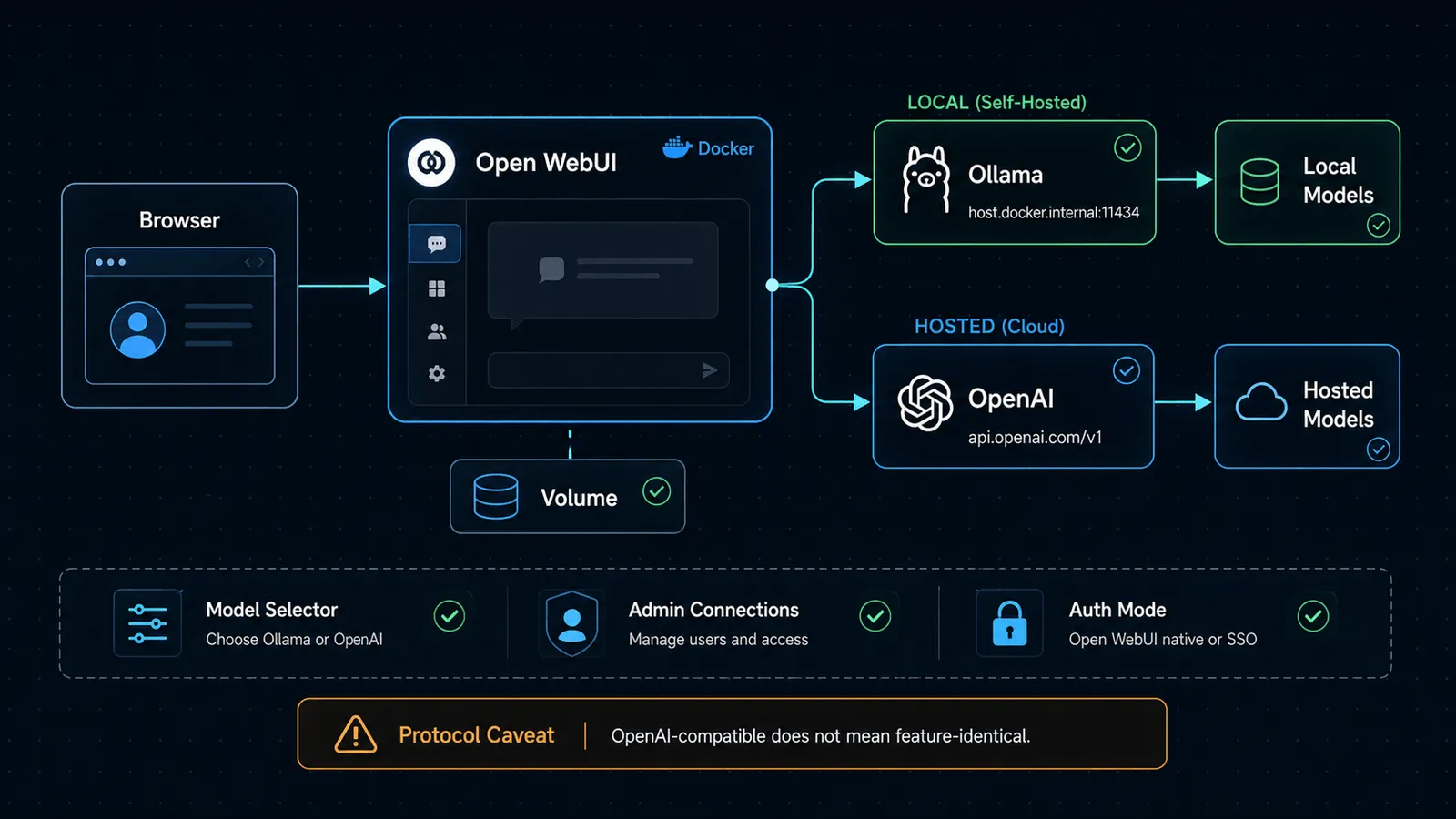
Open WebUI’s provider docs explicitly frame the product around connection protocols. In practice, that means:
- the Ollama connection is the best fit for an actual Ollama server
- the OpenAI connection is the best fit for
https://api.openai.com/v1 - the OpenAI-compatible path is for other services that expose that protocol
That sounds obvious, but it matters.
A lot of users overcomplicate the stack by routing Ollama through the OpenAI connection first, even when the dedicated Ollama integration is already available.
Unless you need protocol unification for a special reason, keep the connections separate.
Step 1: Install Ollama first
Open WebUI is just the interface. You still need a model backend before the local side works.
The easiest official paths are:
- macOS: install the Ollama app and let it expose the CLI and local server
- Windows: install the native Windows app; the API is served on
http://localhost:11434 - Linux: use the official install script
On Linux, the docs currently show:
curl -fsSL https://ollama.com/install.sh | shThen start or verify the service and pull at least one model. A small default like llama3.2 is a practical first test:
ollama pull llama3.2Why do this first?
Because Open WebUI can only auto-detect Ollama models if Ollama is already reachable.
If you are still deciding whether local models are worth the trouble, this comparison helps: Ollama vs LM Studio (2026): Which Should You Use to Run Local LLMs?.
Step 2: Run Open WebUI in Docker
Open WebUI’s docs say Docker is the recommended path for most users, and that is the right default here too.
Use a persistent volume from the start.
docker run -d \
  -p 3000:8080 \
  --add-host=host.docker.internal:host-gateway \
  -v open-webui:/app/backend/data \
  --name open-webui \
  --restart always \
  ghcr.io/open-webui/open-webui:main
Then open:
http://localhost:3000Why include --add-host=host.docker.internal:host-gateway?
Because Open WebUI’s environment reference uses host.docker.internal:11434 as the default Ollama target in the normal Docker case, and Linux users often hit avoidable networking issues if they skip the host mapping.
If you want the all-in-one route instead, Open WebUI also publishes an :ollama image that bundles Open WebUI and Ollama together in one container.
That is good for quick solo experiments.
It is usually not my default recommendation if you already know you want both Ollama and OpenAI in the same long-lived setup, because separate services are easier to reason about and easier to move later.
Step 3: Confirm how Open WebUI expects to find Ollama
Open WebUI’s environment docs matter here.
As of April 11, 2026, the docs say:
ENABLE_OLLAMA_APIdefaults toTrueOLLAMA_BASE_URLdefaults to:http://localhost:11434whenUSE_OLLAMA_DOCKER=True- otherwise
http://host.docker.internal:11434in the normal Docker case
That leads to a practical rule:
- if Ollama runs on the host machine, let Open WebUI reach it through
host.docker.internal - if Ollama runs in a separate server, point Open WebUI at that server explicitly
- if you use the bundled
:ollamaimage, the local default is already aligned tolocalhost:11434
If the connection does not work automatically:
- Open
Admin Settings > Connections > Ollama > Manage - Check the base URL
- Make sure the Ollama server really answers on port
11434
The most common failure is not “Open WebUI is broken.”
It is “the container cannot see the Ollama host.”
Step 4: Add the Ollama connection in Open WebUI
Once Open WebUI is running:
- Go to
Admin Settings - Open
Connections > Ollama > Manage - Verify the URL
- Confirm your local models appear
Open WebUI’s Ollama guide says the app will try to connect automatically, and if it does connect cleanly, you can manage models from the Ollama connection screen.
There is also a convenience shortcut worth remembering:
If you type a model name into the model selector and it is not installed yet, Open WebUI can prompt you to download it from Ollama directly.
That makes the first-run flow much faster than bouncing between terminals and settings pages.
Step 5: Add the OpenAI connection
Now wire in the hosted side.
Open WebUI’s OpenAI guide says the setup path is:
- Go to
Admin Settings - Open
Connections > OpenAI > Manage - Click
Add New Connection - Use:
- URL:
https://api.openai.com/v1 - API key: your OpenAI key
- URL:
The docs also call out an important design choice:
Open WebUI is protocol-centric, and its OpenAI support is mainly through the OpenAI Chat Completions protocol, with experimental support for Open Responses.
That matters for expectations.
If your goal is “use OpenAI models in Open WebUI,” that path is fine.
If your goal is “I need the newest stateful Responses-only behavior to be the center of my app architecture,” you should treat Open WebUI as a UI layer with evolving support, not as a full substitute for building directly on OpenAI’s newest primitives.
Step 6: Keep both providers visible in the same workspace
Once both connections are live, the best setup is usually not “pick one forever.”
It is to use both deliberately.
Use Ollama when:
- the data should stay local
- the task is cheap enough for a local model
- you want predictable cost
- you are testing prompts, format, or retrieval flow before sending anything to a hosted model
Use OpenAI when:
- you need stronger reasoning quality
- you need better multimodal or tool-use performance
- you want less operational work than managing bigger local models
- latency is acceptable and cloud calls are allowed
That split is the main reason to build this stack in the first place.
The important protocol caveat
This is where many tutorials get sloppy.
Open WebUI’s docs currently say its OpenAI path is mainly based on the Chat Completions protocol, while Open Responses support is experimental.
Ollama’s own API docs say:
- it supports parts of the OpenAI-compatible API
- it supports
/v1/responses /v1/responseswas added in Ollama v0.13.3- stateful features like
previous_response_idandconversationare not supported
So the safe conclusion is:
- Open WebUI can sit above both local and hosted model backends very effectively
- but you should not assume “OpenAI-compatible” means every new OpenAI behavior is portable across every provider and UI surface
That is exactly why this guide recommends the native Ollama connection plus the native OpenAI connection instead of flattening everything too early.
A setup pattern I would actually use
If I were deploying this for myself or a small internal team, I would do it in this order:
- Install Ollama and pull one reliable small model.
- Run Open WebUI in Docker with persistent storage.
- Verify the Ollama connection first.
- Add OpenAI second.
- Rename or pin the models people should actually use first.
- Keep the rest available, but not as the default decision surface.
Why?
Because too many visible models create worse usage, not better usage.
A smaller, deliberate default set is easier for real work.
Common mistakes to avoid
1) Using single-user mode too casually
Open WebUI’s quick-start docs show a WEBUI_AUTH=False mode for no-login local usage, but they also warn that you cannot switch between single-user and multi-account mode after that change.
That is fine for a throwaway personal machine.
It is the wrong default for anything you may later expose to teammates.
2) Skipping persistent storage
The Docker docs explicitly call the volume mount out as the thing that prevents data loss between restarts.
If you skip the volume, you are building a demo, not a workspace.
3) Treating networking problems like model problems
If Ollama is healthy but Open WebUI cannot see it, the issue is usually:
- wrong host name
- missing host gateway mapping
- wrong server URL
- container-to-host routing confusion
Check the connection path before you blame the model.
4) Assuming OpenAI-compatible means feature-identical
It does not.
Ollama’s compatibility layer is useful, but its own docs are clear about supported and unsupported behavior. The same general caution applies across local servers and proxies.
Should you use the bundled :ollama image or separate services?
Here is the short version:
| If your situation is… | Better default |
|---|---|
| solo test on one machine, local-first, minimal setup | open-webui:ollama |
| mixed local + hosted stack that you want to keep flexible | separate Ollama + Open WebUI |
| team use, future scaling, or clearer troubleshooting | separate Ollama + Open WebUI |
I would only choose the bundled image as the default when simplicity matters more than separation.
For the “Ollama plus OpenAI in one UI” use case, separate services are usually cleaner.
Final takeaway
The smart way to use Open WebUI with Ollama and OpenAI is to treat it as the shared front end, not the engine itself. Ollama gives you local control and lower-cost inference, while OpenAI gives you hosted model strength when the task needs it. Open WebUI is the layer that keeps the experience consistent across both.
That setup is most valuable if you want one familiar workspace for experimentation, provider switching, and team usage without forcing everyone into a single backend strategy.
SEO FAQ
Can Open WebUI use Ollama and OpenAI together?
Yes. The clean setup is to keep Ollama connected through the native Ollama connection and OpenAI connected through the OpenAI provider connection, then let users choose models from one workspace.
Should I use the Open WebUI bundled Ollama image?
Use the bundled image for quick solo experiments. For a longer-lived mixed local and hosted setup, separate Ollama and Open WebUI services are usually easier to troubleshoot and move later.
Is Open WebUI a production agent backend?
No. Treat Open WebUI as a shared chat and model-access workspace. If you need production workflow state, strict Responses API behavior, or custom tool orchestration, build that application layer separately.
Visual checkpoints
Check these before you treat the workspace as ready:
- Open WebUI persists data after a container restart.
- Ollama models appear through the Ollama connection, not only through a generic OpenAI-compatible workaround.
- The OpenAI connection uses
https://api.openai.com/v1and the intended key. - The model selector makes the local/hosted distinction obvious to users.
- Auth mode is decided before inviting other people, because single-user shortcuts are hard to unwind.
Sources
- Open WebUI Docs — documentation home
- Open WebUI Docs — getting started
- Open WebUI Docs — quick start
- Open WebUI Docs — connect a provider
- Open WebUI Docs — starting with OpenAI
- Open WebUI Docs — starting with Ollama
- Open WebUI Docs — environment configuration
- Ollama Docs — documentation home
- Ollama Docs — macOS
- Ollama Docs — Windows
- Ollama Docs — Linux
- Ollama Docs — Docker
- Ollama Docs — OpenAI compatibility
When to Use
Use Open WebUI when you want one private workspace that can switch between local Ollama models and hosted OpenAI models without building a custom frontend. It is especially useful for experimentation, small internal teams, and local-first workflows that still need occasional hosted-model quality.
When Not to Use
Do not use this stack as a shortcut around application architecture if you need a production agent backend, strict Responses API behavior, or custom workflow state. Open WebUI is the shared interface; it is not a replacement for designing the actual application layer.