If you want a self-hosted AI workspace that feels closer to an actual assistant platform than a simple chat UI, LibreChat is one of the strongest options right now.
The tricky part is not getting the interface to boot.
The tricky part is understanding how OpenAI access and MCP server access fit together inside the same deployment.
Those are different layers:
- OpenAI gives LibreChat its hosted model backend
- MCP servers give those conversations and agents access to tools, systems, and external actions
- LibreChat sits above both as the shared workspace
This guide is the practical version: install LibreChat, connect OpenAI the right way, add MCP without guessing, and avoid the mistakes that make a promising deployment feel fragile.
TL;DR
Use this setup:
- Clone LibreChat and start it with the official Docker-based local setup.
- Put your OpenAI API key in
.envif you want a shared server-side provider configuration. - Use
OPENAI_API_KEY=user_providedonly when you intentionally want each user to bring their own key. - Add MCP servers either:
- in
librechat.yamlwhen you want controlled, file-based configuration, or - through LibreChat’s MCP UI when you want a faster no-file workflow.
- in
- Use MCP in the chat area for model-driven tool use inside normal conversations, and use agents when you want a reusable assistant with its own tools and behavior.
As of April 12, 2026:
- LibreChat’s feature docs position MCP, agents, code execution, memory, and web search as first-class platform capabilities
- LibreChat’s MCP docs say you can use MCP either in the chat area or with agents
- LibreChat’s MCP docs also distinguish between file-based MCP setup that requires a restart and newer UI-based MCP flows that can avoid editing config files
- LibreChat’s Agents API docs say the platform supports both OpenAI-compatible Chat Completions and an Open Responses API, and describe Open Responses as the future direction for agent serving
That combination is why LibreChat works well when you want one internal workspace that can both call hosted models and connect those models to tools.
Who this setup is actually for
This stack fits best if you are one of these:
- a developer who wants a private ChatGPT-style workspace with OpenAI access plus tools
- a small internal team that wants shared AI chat without giving up agent workflows
- a technical lead evaluating whether LibreChat is a better fit than a simpler model portal
If your bigger decision is still “which self-hosted AI workspace should we standardize on?”, read Open WebUI vs LibreChat vs AnythingLLM (2026): Which Self-Hosted AI Workspace Should You Use?.
The architecture that usually works best
The clean mental model is:
Browser
  -> LibreChat
      -> OpenAI for hosted models
      -> MCP servers for tools and actions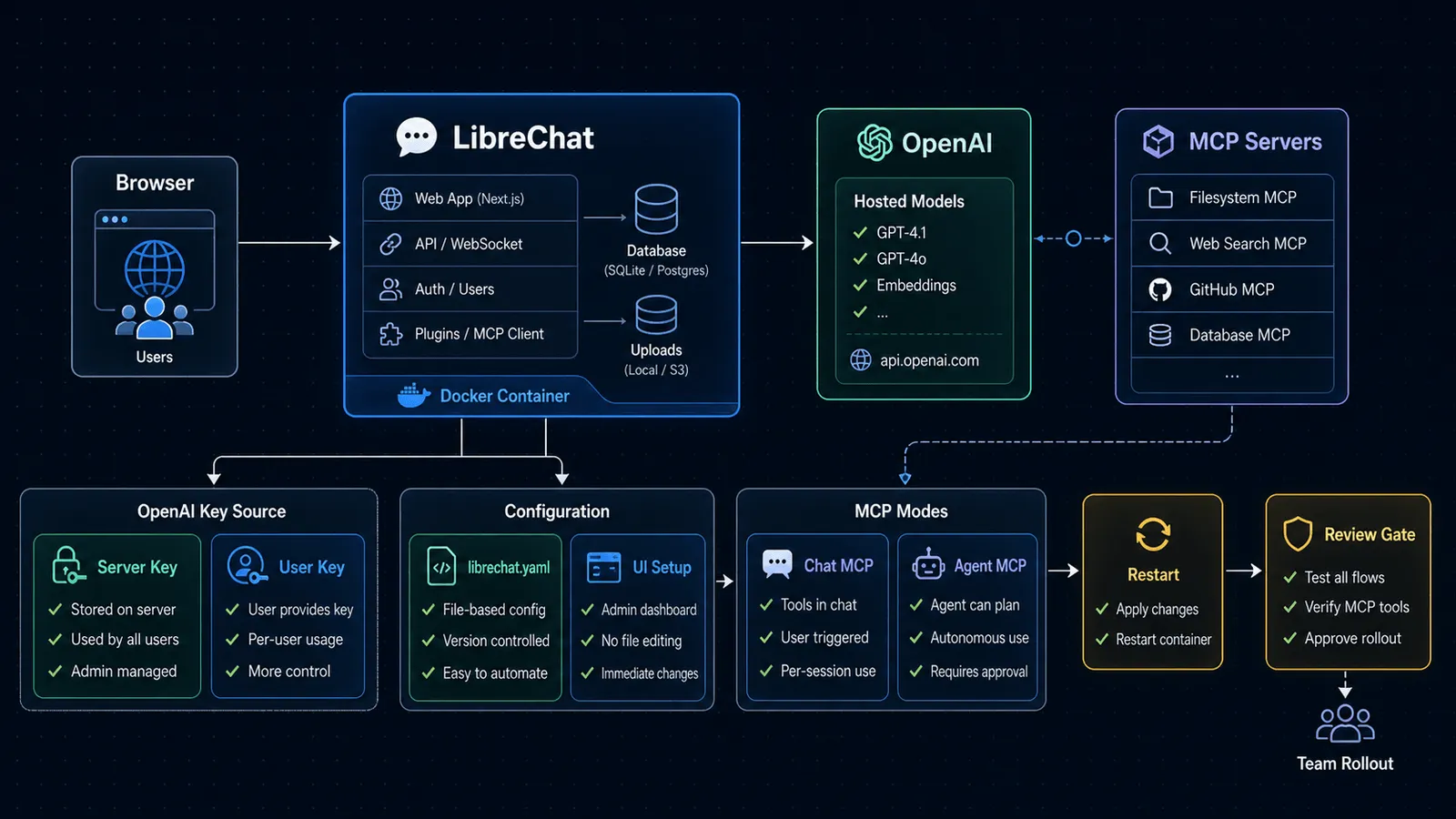
That matters because a lot of teams blur “model provider” and “tool server” into one thing.
They are not the same thing.
- OpenAI is where the model inference happens
- MCP is how the model gets access to external capabilities
- LibreChat is the orchestration layer where users, conversations, agents, and permissions live
If you keep those roles separate, configuration decisions get much easier.
Step 1: Start with LibreChat’s Docker-based local setup
LibreChat’s docs are explicit that the normal on-ramp is the Local Setup Guide and Docker-based startup.
The practical reason is simple: LibreChat is not just one stateless frontend container. Even small deployments work better when you follow the official service layout instead of improvising from scratch.
The usual flow is:
- Clone the LibreChat repository
- Copy the environment template into
.env - Start the stack with Docker Compose
The Docker reference matters here too: docker compose up -d is the normal detached pattern when you want the services to keep running in the background.
If you are already running a different self-hosted workspace and want a lighter “single front door” for mixed models, this adjacent guide may be a better fit: How to Use Open WebUI with Ollama and OpenAI (2026).
Step 2: Decide whether OpenAI is server-managed or user-provided
This is the first decision that changes how the deployment feels.
Option A: shared server-side OpenAI key
If you want a team-facing deployment where the server exposes OpenAI models centrally, put your OpenAI key in LibreChat’s .env file.
That is the cleaner default for:
- internal team workspaces
- shared billing
- centrally approved model access
- predictable admin control
In practice, this is what most organizations want first.
Option B: OPENAI_API_KEY=user_provided
LibreChat’s OpenAI endpoint docs also support a different pattern: set
OPENAI_API_KEY=user_providedThat tells LibreChat to let each user bring their own OpenAI key.
This can be useful when:
- you are running a community-facing instance
- you do not want to proxy everyone’s usage through one organizational key
- you want a cleaner separation of billing responsibility
But there is an important tradeoff in the docs:
- when you use
user_provided, LibreChat only shows the models listed inOPENAI_MODELS
That means the “everyone can just use whatever OpenAI exposes” assumption is wrong. Even in a bring-your-own-key flow, the admin still shapes the visible model surface.
Step 3: Start with plain OpenAI chat before adding MCP
Do this in order.
Do not wire half a tool layer and then debug three systems at once.
First confirm:
- LibreChat boots cleanly
- the OpenAI endpoint is available in the UI
- a normal conversation succeeds with your intended model access pattern
Only after that should you add MCP.
This sequencing matters because otherwise every failure looks like “LibreChat is broken,” when the real problem is often one of these:
- the OpenAI key is missing or scoped incorrectly
- the wrong
.envvalue is being used - the MCP server was added but never initialized
- an agent was configured before the underlying provider path was stable
Step 4: Understand the two MCP modes inside LibreChat
LibreChat’s MCP docs are unusually clear on this point:
- you can use MCP in the chat area
- you can use MCP with agents
That is the practical split you need to understand.
MCP in the chat area
Use this when you want:
- a normal conversation with a model
- plus the ability to call tools during that conversation
This is the better starting point if your team is still learning what tools are actually useful.
It keeps the workflow simple:
- users choose a non-agent endpoint such as OpenAI and a tool-compatible model
- users attach or enable the MCP server
- the model can use the tools inside the live conversation
MCP with agents
Use this when you want:
- a reusable assistant
- a defined role or operating behavior
- a stable bundle of tools that should travel with that assistant
This is the better choice when the workflow is repeatable, not just exploratory.
If your team is standardizing on MCP more broadly, this background piece helps frame why that matters: Why MCP Is Becoming the Default Standard for AI Tools in 2026.
Step 5: Choose file-based MCP config or the UI flow
LibreChat now supports two very different setup styles for MCP.
File-based configuration in librechat.yaml
This is still the stronger default for controlled team deployments.
Why?
- the config is reviewable
- the setup is reproducible
- admins can manage changes through normal infrastructure workflows
But the docs are explicit about the operational requirement:
- if you add or edit an MCP server in
librechat.yaml, you need to restart LibreChat so the connection initializes
That restart requirement is easy to miss, and it is one of the fastest ways to waste time while debugging.
If the server definition looks right but nothing appears in LibreChat, verify the restart actually happened before chasing anything else.
UI-based MCP setup
LibreChat also documents a newer UI-driven path for discovering and installing MCP servers, including smithery-based flows.
That is useful when you want:
- a faster proof of concept
- less direct file editing
- a lighter admin workflow for testing integrations
The important distinction is this:
- file-based config is better for controlled infrastructure
- UI-based setup is better for speed and experimentation
For production, I would still bias toward explicit config where possible.
There is one more important production detail in the docs:
- STDIO servers are a better fit for local or single-user environments
- SSE servers are remote, but the docs do not recommend them for production
- Streamable HTTP is the recommended transport for scalable, multi-user production deployments
So if this stack is moving beyond a local proof of concept, the safest default is:
- use local STDIO only for local-only experiments
- use Streamable HTTP for serious remote/shared deployments
- avoid treating older SSE transport as the long-term answer
Step 6: Keep the first deployment boring
The best initial deployment is not the most feature-rich one.
It is the one that is easiest to reason about.
A good first version usually looks like this:
- one OpenAI provider path
- one or two MCP servers with obvious value
- chat-area MCP first
- agents second
That order teaches you what users actually do before you overdesign the workspace.
If you jump straight to multiple providers, several tool servers, remote agents, and custom policies, you create too many failure boundaries at once.
Step 7: Know where LibreChat is heading on agent APIs
LibreChat’s Agents API docs matter even if you are only setting up the UI today.
As of April 12, 2026, the docs say:
- the Agents API exposes both an OpenAI-compatible Chat Completions interface and an Open Responses API
- LibreChat describes Open Responses as the platform’s primary future direction for serving agents
Why should you care?
Because it means LibreChat is not positioning agents as a side feature bolted onto chat.
It is moving toward agent interfaces that can fit existing OpenAI-style tooling while still evolving past plain chat completions.
If you want the broader migration context, this piece connects the dots: How to Migrate from Chat Completions to the Responses API (2026).
Common mistakes that waste the most time
1. Treating OpenAI setup and MCP setup as one problem
They are adjacent, not identical.
Prove model access first. Then add tools.
2. Using user_provided without thinking through model visibility
Bring-your-own-key is not the same as unrestricted model exposure. The docs still tie visible models to admin-defined configuration.
3. Editing librechat.yaml and forgetting the restart
This is the most avoidable operational miss in the whole stack.
4. Starting with agents before basic chat works
Agents add another abstraction layer. If plain chat plus OpenAI is not stable yet, you are debugging in the wrong order.
5. Assuming every useful MCP workflow belongs in an agent
Sometimes the right answer is just a normal conversation with one good tool attached.
When LibreChat is the right choice
LibreChat is the right default when your team wants:
- hosted model access
- a self-hosted shared UI
- a serious tool layer through MCP
- the option to grow into reusable agents later
It is less compelling if your only goal is “a simple internal portal for chat with one or two models.”
In that case, the extra agent and MCP surface may be more platform than you actually need.
Final recommendation
If you are setting up LibreChat for the first time, do it in this order:
- bring up the Docker-based local stack
- confirm OpenAI works in plain chat
- add one MCP server
- test MCP in the chat area
- only then package the successful pattern into an agent
That sequence keeps the deployment understandable.
And for a self-hosted AI tool, understandable is what usually determines whether it survives past the demo.
Step-by-step workflow
Step 1: Prepare LibreChat, OpenAI, and MCP access
Validate access, dependencies, and baseline configuration before execution.
Step 2: Connect one MCP tool and test it safely
Run the workflow in a controlled scope, capture outputs, and verify expected behavior.
Step 3: Lock down tools before team use
Review results, document exceptions, and finalize rollout criteria for repeatability.
Visual checkpoints
Use these checks before inviting other users into the workspace:
- A plain OpenAI chat works before MCP is enabled.
- The MCP server appears in the intended mode: chat-area tool or agent tool.
- File-based MCP changes survive a restart and are visible in the UI.
- User-provided key mode only exposes the models you intentionally listed.
- A test user can complete the intended workflow without seeing unrelated tools.
SEO FAQ
Can LibreChat use OpenAI keys from multiple users?
Yes. LibreChat supports both server-managed API keys (configured in .env) and user-provided keys (entered in the UI). Server-managed keys give admins control; user-provided keys let individuals bring their own accounts.
What MCP servers work with LibreChat?
LibreChat supports MCP servers through two modes: a file-based config (mcp_config.json) and a UI-based flow. You can connect any MCP-compliant server that uses stdio or Streamable HTTP transport. The config lets you scope which tools are available per endpoint.
Is LibreChat free and open source?
Yes. LibreChat is open source and can be self-hosted via Docker. You pay for the underlying model API usage (OpenAI, Anthropic, etc.) but the platform itself is free. Enterprise features and managed hosting may have separate pricing.
How is LibreChat different from ChatGPT?
LibreChat is a self-hosted, multi-model chat interface that supports OpenAI, Anthropic, Google, and other providers in one UI. ChatGPT is OpenAI’s hosted product. LibreChat gives you data control, multi-provider routing, MCP tool support, and customizable deployment — but requires self-hosting and API key management.
Sources
- librechat.ai — Features
- librechat.ai — Local Setup
- librechat.ai — Openai
- librechat.ai — Custom Endpoints
- librechat.ai — Mcp
- librechat.ai — Mcp Settings
- librechat.ai — Agents Api
- docs.docker.com — Up
- platform.openai.com — Overview
When to Use
Use LibreChat when you want a self-hosted team workspace that can grow from normal hosted-model chat into reusable agents and MCP tools. It is strongest when admins want central configuration, users need a familiar chat surface, and MCP should be introduced gradually.
When Not to Use
Do not start with LibreChat if the actual need is only a tiny single-user model switcher or a lightweight local-first UI. In that case, Open WebUI, a direct app integration, or a simpler provider gateway may be less operational overhead.